> ## Documentation Index
> Fetch the complete documentation index at: https://docs.autotab.com/llms.txt
> Use this file to discover all available pages before exploring further.
# Running
> Overview of how to run your skills.
# Running your Skills
You may run your skills locally, or in the cloud. You can also trigger runs manually, or put them on a schedule (for cloud runs).
# Local runs
In order to run Autotab locally, we recommend updating your settings to allow Autotab to run even when you are away from your computer.
First, open **System Settings**, navigate to **Battery** or **Energy** (for Desktop), and go to **Options**.
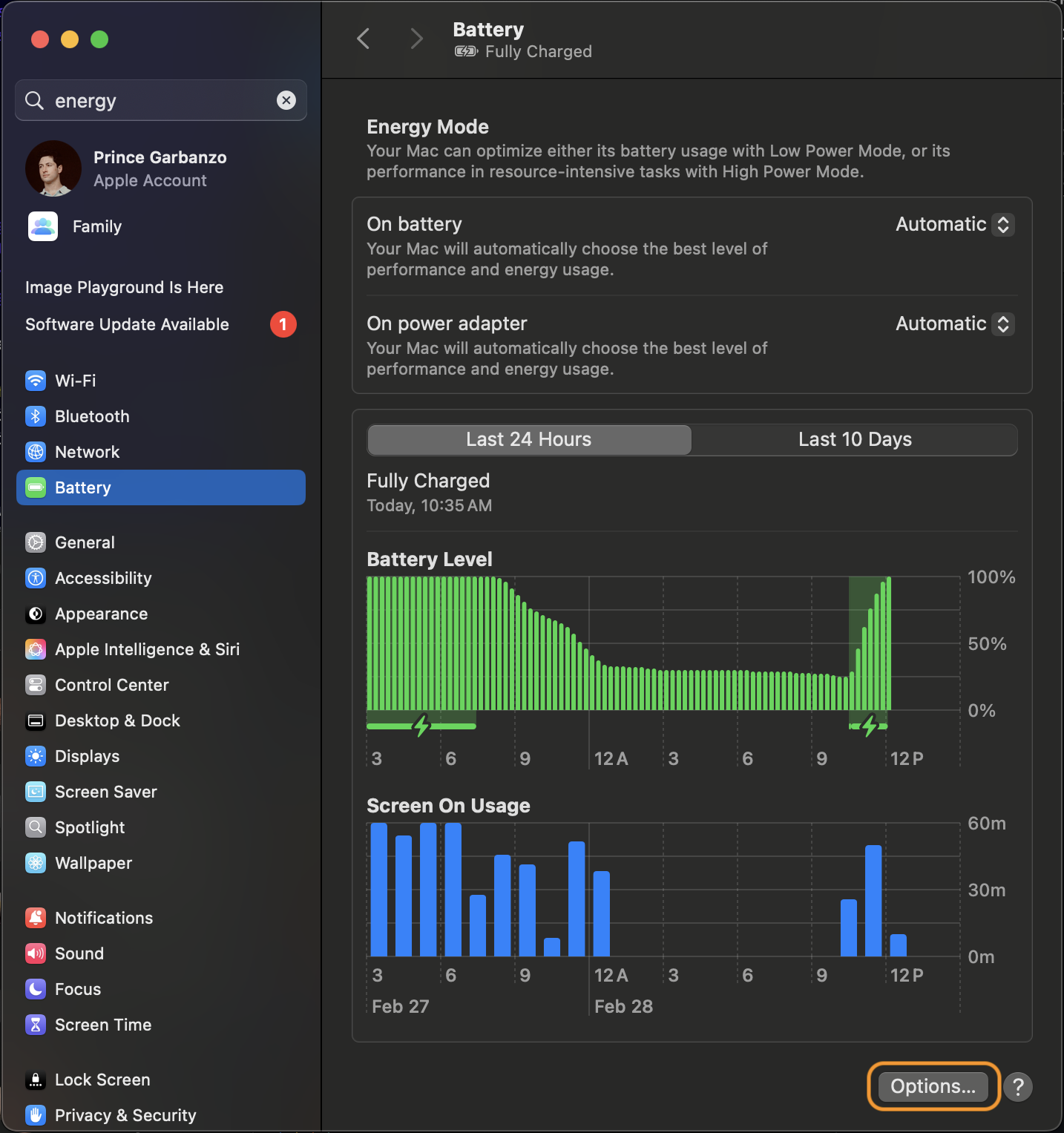 Then enable "Prevent automatic sleeping on power adapter when the display is off".
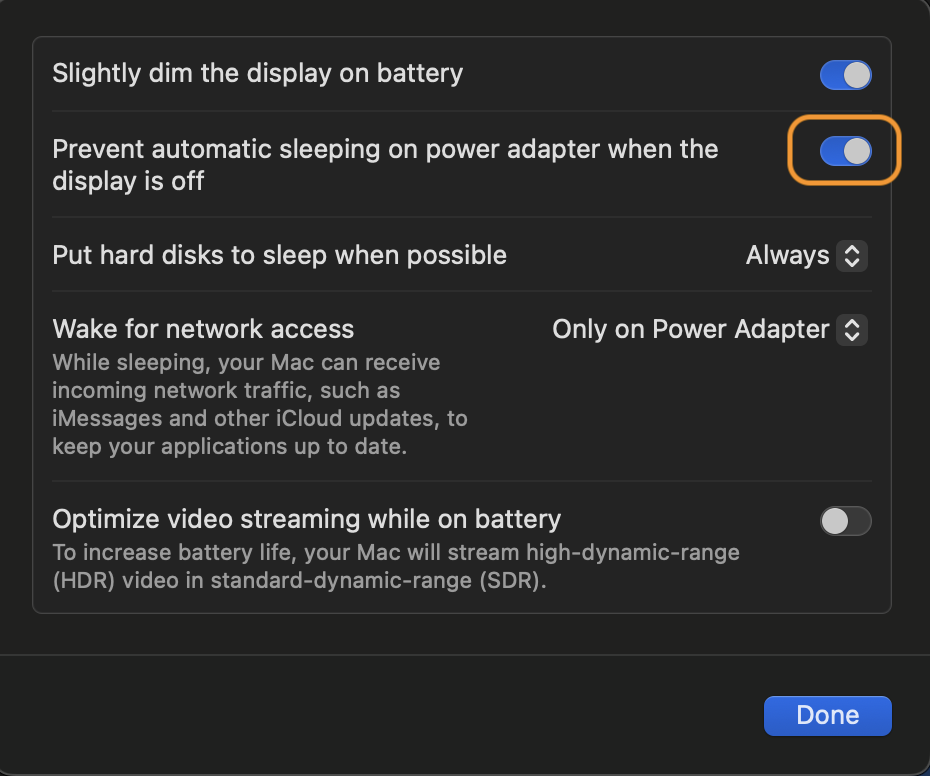 That's it! You're all set to run Autotab locally.